How Data Studio template delivery works
After purchase you receive a link to the template and a setup guide; you copy the Data Studio (formerly Looker Studio) report into your own Google account, and that copy is yours, with lifetime access.
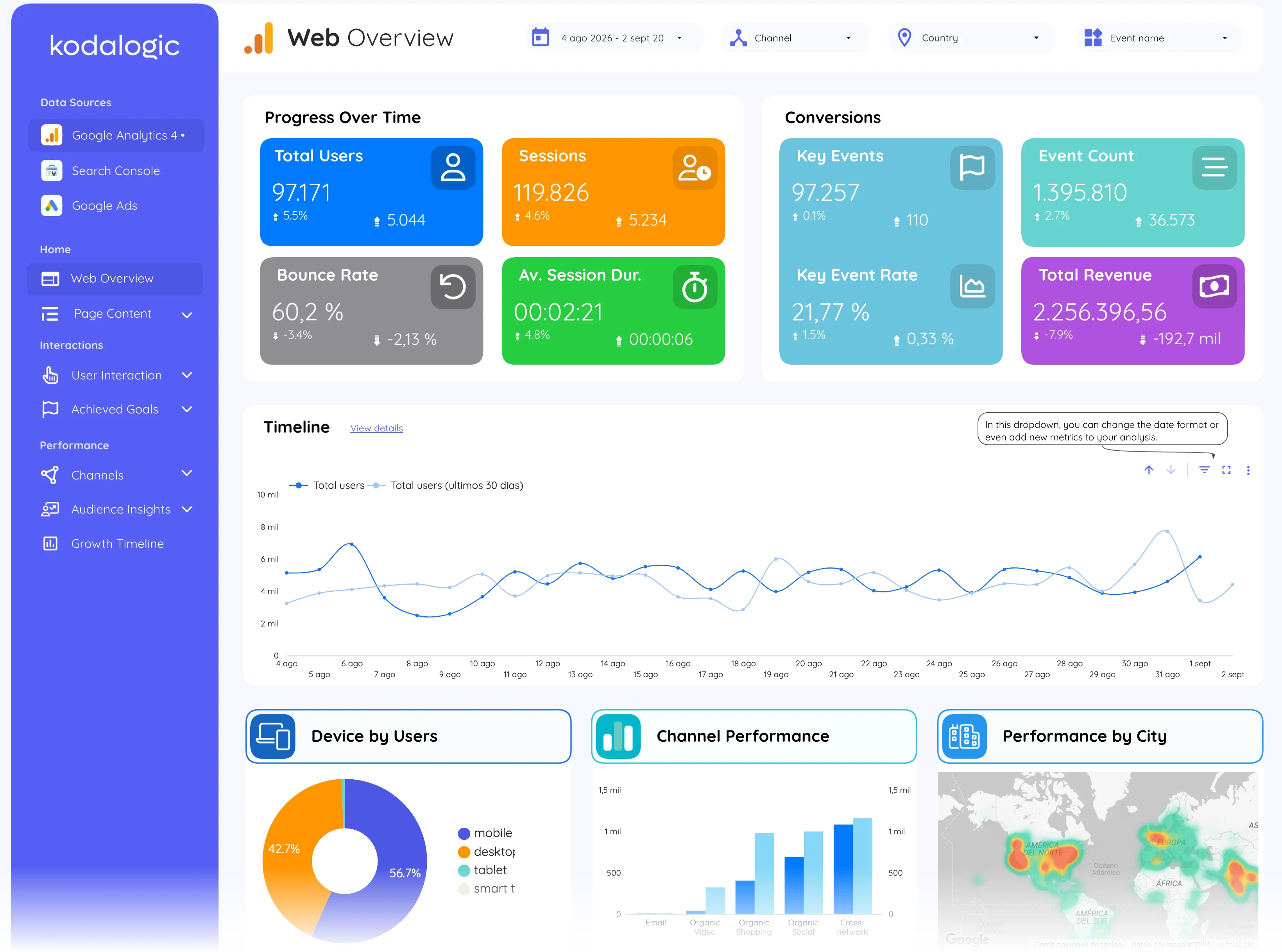
What arrives
Two things: a link that opens the template in Data Studio, and the written setup guide that walks through connecting your own data and customising the report. Nothing is installed and nothing is downloaded: a Data Studio template is a report you duplicate inside Google’s own tool.
Making your copy
- 01
Open the template link while signed in to the Google account that should own the report.
- 02
In the top bar, open the three-dot menu and choose Make a copy. Data Studio asks which data sources the copy should use: pick your own properties here, or keep the placeholders and connect them later.
- 03
Press Copy report. The copy opens in edit mode, in your own Data Studio home, under your own account. From this second it behaves like a report you built yourself.
What “lifetime” means here
The copy stays in your account whether or not you ever come back to this site. Nothing we do later reaches into it: if we update the original template, your copy is untouched, which is the point, because by then it is yours and edited. When an update matters to you, open the template link again and make a fresh copy; both copies live side by side.
You can copy it again into a second account if you need to, and you can share your copy with colleagues from inside Data Studio like any other report. What you cannot do is resell it: the licence covers your own use and your clients’ reports, not redistribution.
Check
The copy appears in your Data Studio home under your own account.
The title no longer says “Copy of”: rename it to the client or the project.
The data sources show your properties, not the demo ones (next doc).